The Git Workflow
18 min read·Jan 1, 2025
In Git, the "workflow" refers to the series of steps developers follow to organize their work and save the changes made to a codebase.
In essence, this workflow consists of three steps involving three distinct locations (or areas) where the files are stored, tracked, and managed:
- The working tree
- The staging area
- The repository
The working tree
The working tree, also known as the working directory, is the directory on your local machine that contains all the files of your project, in their current state of development.
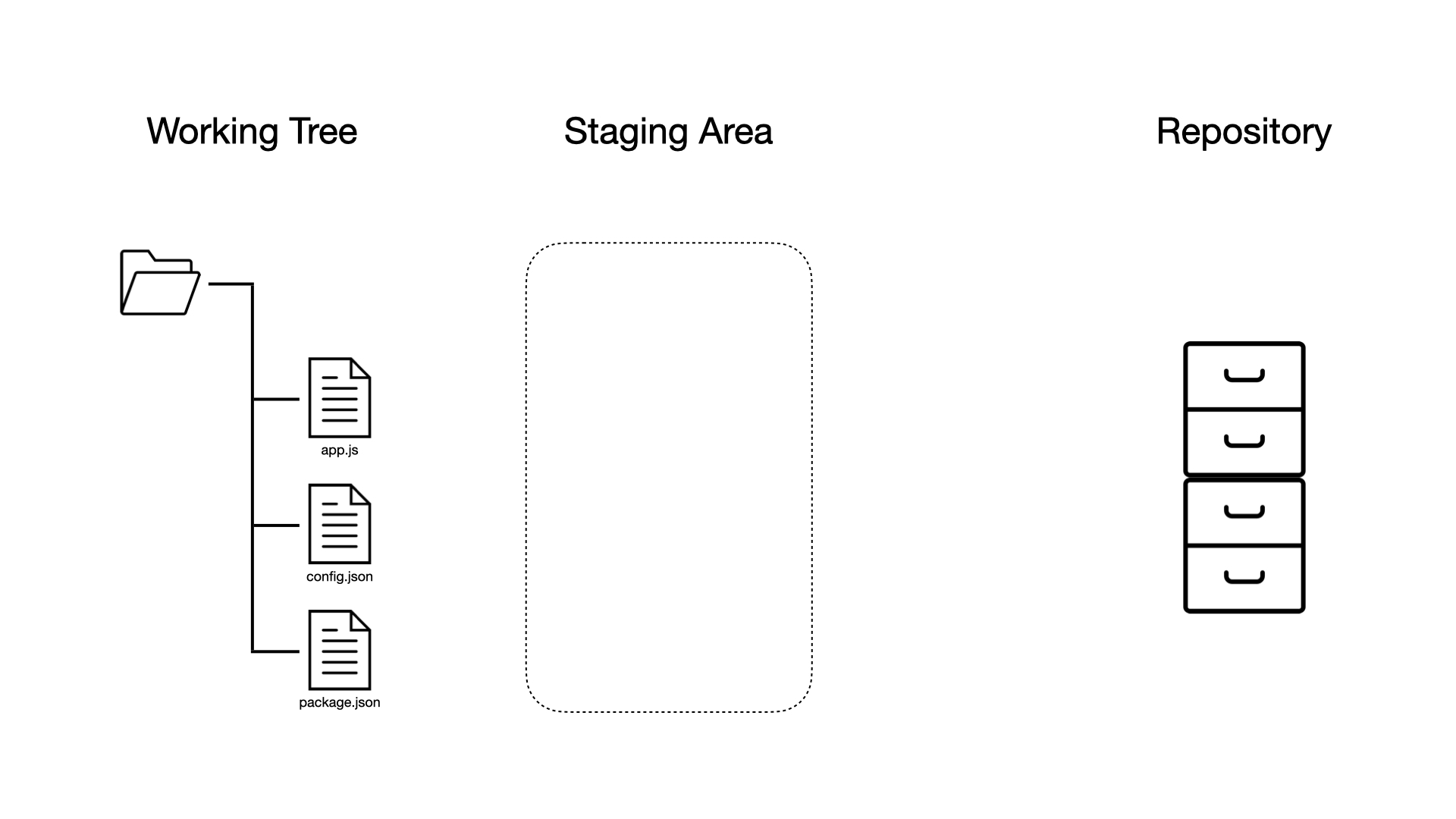
It is the area where you add, edit, and remove files through the command-line interface or your text editor.
The staging area
The staging area, also known as the index, is a virtual buffer zone that allows you to list all the files you want to include in the next commit — a commit being a snapshot of the changes made to the files present in the staging area at a specific point in time.
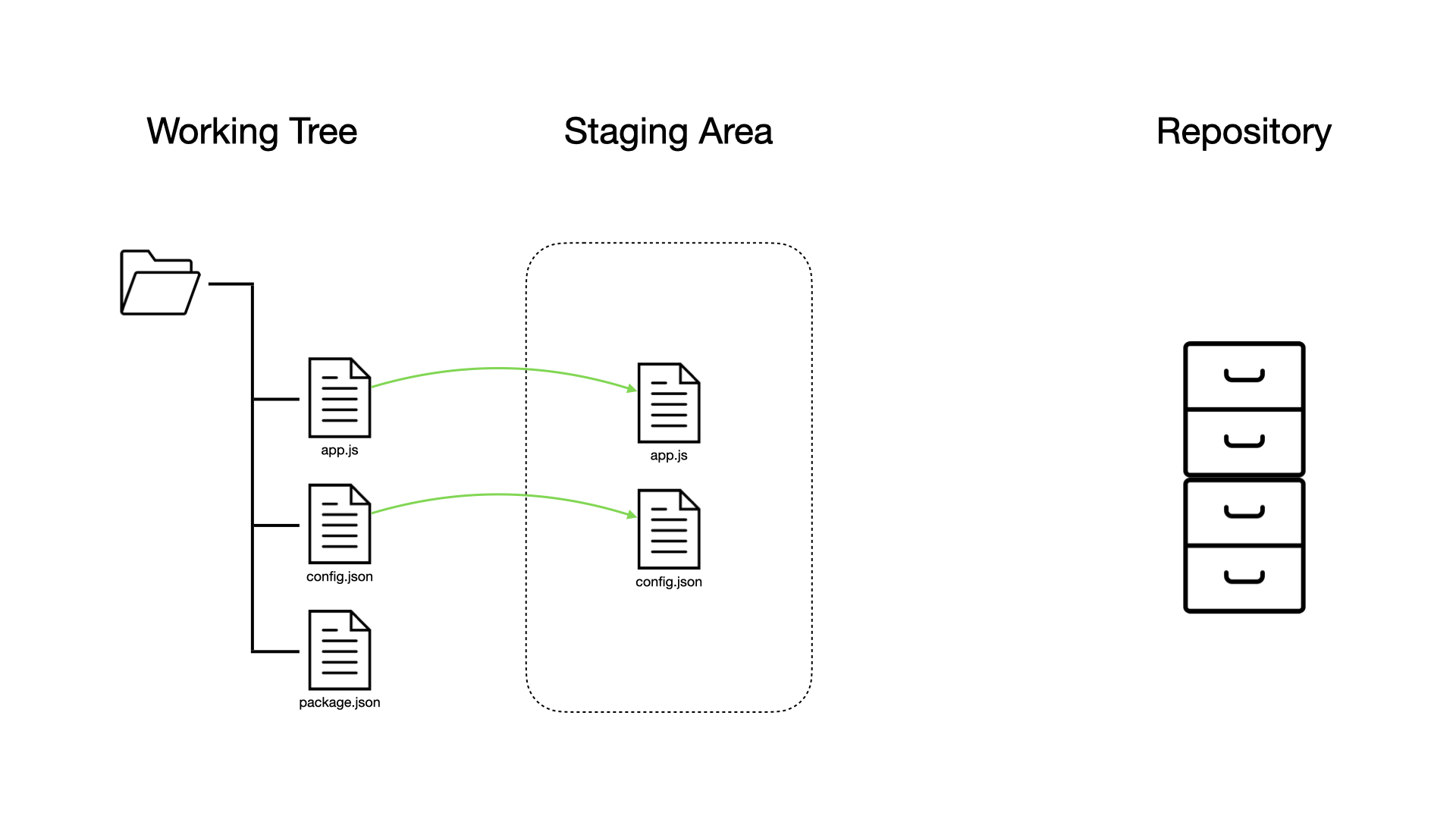
You can think of the staging area as a clipboard that allows you to save a temporary copy of the changes made to specific files of the working tree at a given stage of development.
The repository
The repository is the area in the local .git directory where Git physically stores all the snapshots of your files (the commits), forming a timeline of your project's development, that can later be accessed to track and compare changes, revert code to previous versions, and so on.
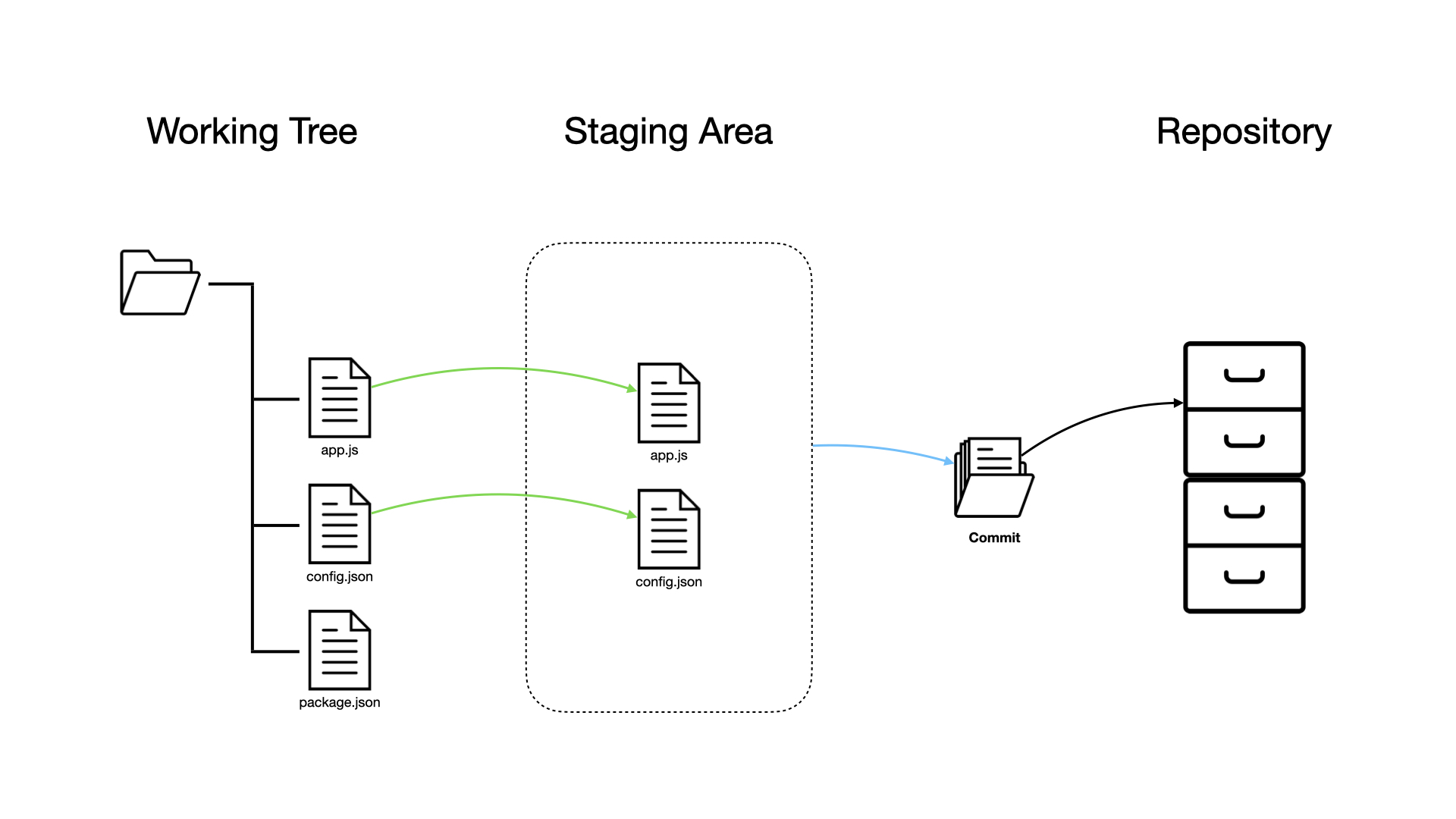
You can think of a commit as a bundle of related files that represent a finished improvement, feature, or fix.
Initializing a Git repository
In Git, a repository is a centralized storage location where version-controlled files and their complete history are stored.
To tell Git to start tracking the changes made to the files of a project, you can use the git init command within the root directory of the project.
$ git init
This command will create within that directory a hidden directory named .git, that contains all the configuration files and data Git needs to manage version control.
$ ls -l .git
total 40
-rw-r--r--@  1 razvan  staff   15 Aug  6 13:10 COMMIT_EDITMSG
-rw-r--r--@  1 razvan  staff   23 Aug  6 13:08 HEAD
-rw-r--r--@  1 razvan  staff  137 Aug  6 13:08 config
-rw-r--r--@  1 razvan  staff   73 Aug  6 13:08 description
drwxr-xr-x@ 15 razvan  staff  480 Aug  6 13:08 hooks
-rw-r--r--@  1 razvan  staff  118 Aug  6 13:11 index
drwxr-xr-x@  3 razvan  staff   96 Aug  6 13:08 info
drwxr-xr-x@  4 razvan  staff  128 Aug  6 13:10 logs
drwxr-xr-x@  8 razvan  staff  256 Aug  6 13:10 objects
drwxr-xr-x@  4 razvan  staff  128 Aug  6 13:08 refs
❗ Warning: The
.gitdirectory should never be manually altered nor deleted, as it can have potentially destructive consequences for the repository, such as unpredictable behaviors or a total loss of the version history.
Adding files to the staging area
Tracking changes
To get the current state of files in both the working tree and the staging area, you can use the git status command as follows:
$ git status
This command will output:
- The files unknown to Git (i.e. "untracked") that have never been added to the staging area nor committed to the repository.
- The files known to Git that have been modified but not yet added to the staging area (i.e. "modified").
- The files known to Git that have been modified and added to the staging area (i.e. "staged").
- A suggestion for the next steps based on the current status.
Example
Let's create and initialize new temporary directory named git-demo:
~/projects$ mkdir git-demo
~/projects$ cd git-demo
~/project/git-demo$ git init
Within this directory, let's create a new file named index.js containing some JavaScript code:
~/project/git-demo$ echo 'console.log("Hello, Git!");' > index.js
~/project/git-demo$ ls
index.js
Finally, let's check the state of the working tree and the staging area using the git status command:
~/project/git-demo$ git status
On branch master

No commits yet

Untracked files:
  (use "git add <file>..." to include in what will be committed)
	index.js

nothing added to commit but untracked files present (use "git add" to track)
Which indicates that the directory contains 1 untracked file index.js.
Staging files
To selectively add files from the working tree to the staging area, you can use the git add command:
$ git add file ...
Where file ... are the relative or absolute paths to the files and directories you want to stage.
Once added to the staging area, Git will then be aware of their existence and start tracking their changes over time.
Note that it is also possible to add all the files in the working tree to the staging area at once using the -A flag as follows:
$ git add -A
Example
Let's add the index.js file we've previously created to the staging area using the git add command:
~/project/git-demo$ git add index.js
Then, let's check the repository status using the git status command:
~/project/git-demo$ git status
On branch master

No commits yet

Changes to be committed:
  (use "git rm --cached <file>..." to unstage)
	new file:   index.js
Which indicates that Git now tracks the index.js file and sees it as a new file.
Restaging files
When adding files to the staging area, Git creates a temporary copy of these files in their current state.
Consequently, if you make modifications to a staged file, you will have to add it again to the staging area using the git add command in order to capture these changes.
Example
Let's modify the content of the index.js file:
~/project/git-demo$ echo 'console.log("Hello, World!");' >> index.js
~/project/git-demo$ cat index.js
console.log("Hello, Git!");
console.log("Hello, World!");
Then, let's check the repository status once again using the git status command:
~/project/git-demo$ git status
On branch master
Changes to be committed:
  (use "git restore --staged <file>..." to unstage)
	modified:   index.js

Changes not staged for commit:
  (use "git add <file>..." to update what will be committed)
  (use "git restore <file>..." to discard changes in working directory)
	modified:   index.js
Which indicates that the index.js file is staged, but that the staged version doesn't include the latest changes made in the working tree.
Renaming files
To rename a tracked file and add it to the staging area, you can use the git mv command:
$ git mv <old_file> <new_file>
Which will tell Git that the old file has been renamed:
$ git status
On branch master
Changes to be committed:
  (use "git restore --staged <file>..." to unstage)
	renamed:    old_file.js -> new_file.js
Preventing files from being tracked
In Git, ignored files are files that Git has been explicitly told to ignore so that they are never tracked, staged, or committed.
These files and directories are specified in the form of a list of patterns in a special file named .gitignore located in the top-level directory of the project.
When running a command such as git add -A, these patterns are matched against the filenames to be committed in order to determine whether or not they should be ignored.
For example:
$ cat .gitignore
# Logs
logs
*.log
npm-debug.log*

# Dependency directories
node_modules/

# Cache directory
.npm

# Environment
.env.*
💡 Tip: Keeping the
.gitignorefile up to date is crucial as it allows you to:
Avoid cluttering the repository with unnecessary files, such as log files or external modules.
Prevent sensitive information from being committed to the repository, such as configuration files containing API keys, passwords, or personal data that should not be shared or exposed publicly.
Committing changes to the repository
To commit the files present in the staging area to the repository, which means saving a snapshot of these files at this specific point in time, you can use the git commit command:
$ git commit -m <message>
Where:
- The
-mflag is used to write a short and meaningful message describing the commit.
Note: Once committed, these files become a permanent part of the version history and are removed from the staging area (but not the working tree).
Example
Let's re-stage the index.js to make sure that the staging area contains the latest version of the file:
~/project/git-demo$ git add index.js
~/project/git-demo$ git status
On branch master

No commits yet

Changes to be committed:
  (use "git rm --cached <file>..." to unstage)
	new file:   index.js
Then, let's commit all the files present in the staging area to the repository using the git commit command:
~/project/git-demo$ git commit -m "feat: create index file"
[master (root-commit) b572990] feat: create index file
 1 file changed, 2 insertions(+)
 create mode 100644 index.js
Finally, let's check the repository status one last time using the git status command:
~/project/git-demo$ git status
On branch master
nothing to commit, working tree clean
Which indicates that both the working tree and the staging area are clean.
Writing semantic commit messages
In Git, semantic commit messages are a standardized way of writing commit messages that convey the intent of the changes made in a clear and structured manner.
One of the most widely adopted specifications for semantic commit messages is the Conventional Commits standard, which provides a set of rules for creating an explicit commit history.
A semantic commit message typically has the following format:
<type>(scope): <description>
Where:
type: A single word that indicates the nature of the commit and the kind of changes it introduces.scope: An optional word that provides contextual information about which part of the codebase the changes affect.description: A concise summary of the changes (maximum 50 characters), written in the imperative mood, that doesn't end with a period.
Common types include:
feat: A new feature.fix: A bug fix.docs: A change in the documentation.style: A change that doesn't affect the meaning of the code (e.g., adding white-spaces, missing semicolons, etc).refactor: A change that neither fixes a bug nor adds a feature (e.g., renaming variables, rewriting functions, etc).test: An addition or refactoring of tests.chore: A change in the build system or external dependencies.perf: A code change that improves performance.
For example:
# Adds a new feature integrating Stripe into the payment module.
feat(payment): add Stripe integration

# Fixes an issue in the API where the user ID parameter was incorrect.
fix(api): correct user ID parameter in GET request

# Updates the README file with new installation steps.
docs(readme): update installation instructions

# Improves the code structure in the authentication module without changing its functionality.
refactor(auth): simplify token validation logic
Good practices for staging and committing
When adding files to the staging area or commits to the repository, following good practices ensures that your commits are meaningful, your project history is clean, and collaboration with others is smooth.
Review changes before staging
Reviewing changes before staging helps you ensure that only the intended modifications are included, reducing the risk of committing mistakes, temporary changes, or debug code.
Avoid staging generated or temporary files
Avoid staging generated files like build artifacts, compiled binaries, or temporary files by adding them to the .gitignore file helps keep the repository clean and organized.
Stage incremental changes
Stage incremental changes by regrouping in the staging area only the files that are related to the same set of changes, such as the introduction of a new feature, a bugfix, a documentation change, and so on.
Check the staging area before committing
Check the staging area before committing to ensure that no unintended files or changes are included in the commit.
Use descriptive commit messages
Use short and descriptive commit messages, such as semantic commit messages, to help your future self and others understand the purpose and impact of the commit.
Avoid large commits
Avoid large commits that make it hard to review, understand, and isolate specific changes.
Summary
Here's a summary of what you've learned in this lesson:
- The working tree is the directory on your local machine that contains all the files of your project, in their current state of development.
- The staging area is a buffer zone that allows you to list all the files you want to include in the next commit.
- The repository is the area where Git physically stores all the commits, forming a timeline of your project's development.
- A commit is a snapshot of the changes made to the files present in the staging area at a specific point in time.
- The
git initcommand is used to initialize a new Git repository within a project. - The
git statuscommand used to describe how Git sees the files of the working tree and the staging area in their current state. - The
git addcommand is used to add files to the staging area. - The
git commitcommand is used to commit the files present in the staging area to the Git repository.
Enjoying the courses?
I've made these courses completely free so anyone can learn from them. If they've helped you and you'd like to actively support the work behind BackendBrewery, you can leave a tip:
Support BackendBrewery