Collaborating With Developers on GitHub
9 min read·Jan 1, 2025
GitHub is a popular web-based platform that provides hosting for Git repositories.
It allows developers to download the latest changes made to a project by others and contribute to it by uploading their own changes.
It provides a user-friendly interface for managing repositories and collaborating to projects through features such as issue tracking, pull requests, code reviews, and more.
Note: You will need a GitHub account to complete this lesson. You can create one now by visiting www.github.com/signup.
Creating a new GitHub repository
To create a new remote repository on the GitHub platform, you need to:
- Visit https://github.com/new.
-
Fill in the form.
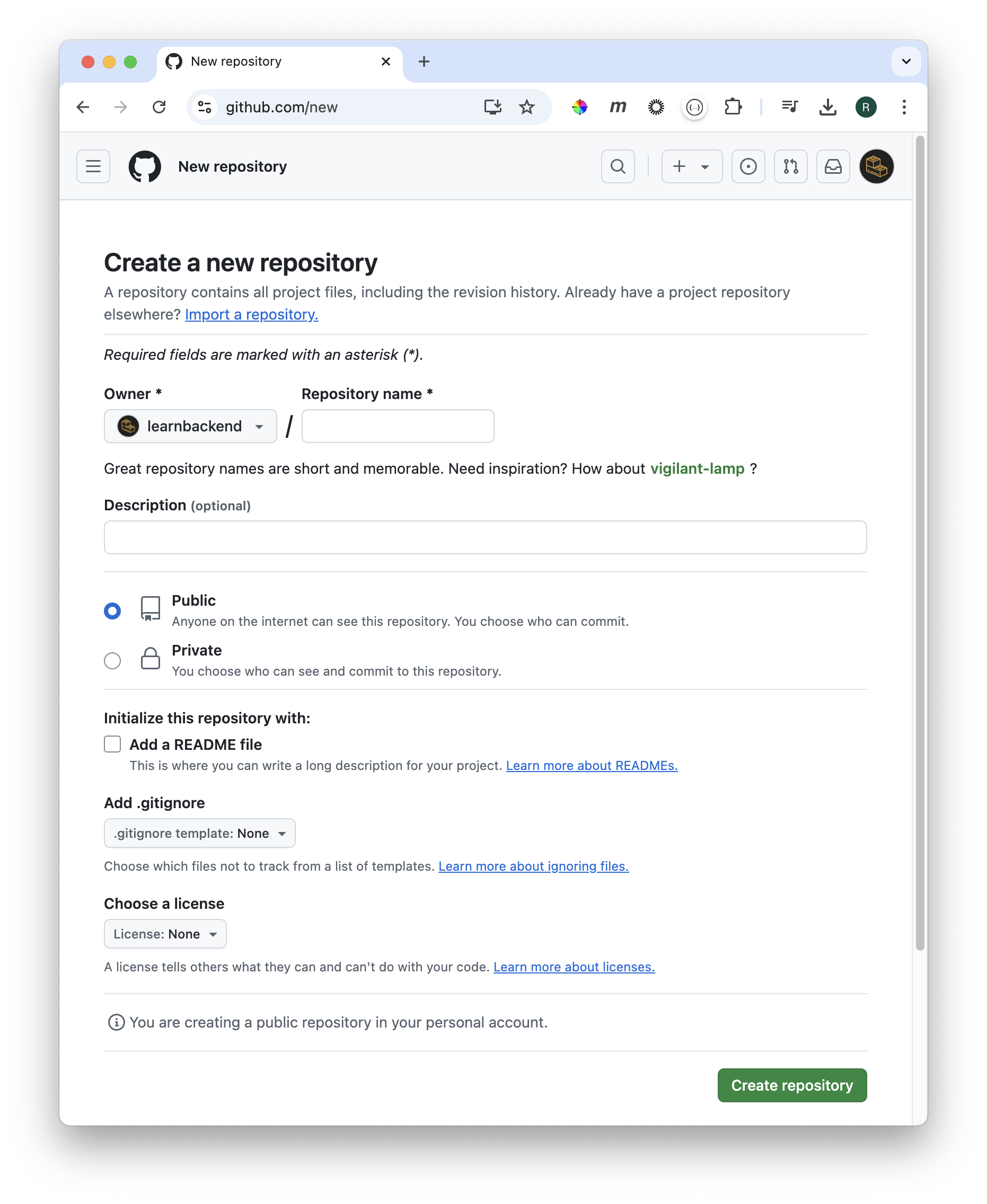
- Click on the
Create repositorybutton to finish the process.
Cloning a remote repository
In Git, cloning refers to the process of downloading a local copy of a remote repository, allowing you to work on the project from your own machine while keeping it synced with the GitHub repository.
To clone a repository, you can use the git clone command as follows:
$ git clone [--origin <name>] <url> [<directory>]
Where:
<name>is the name of the remote repository on your local machine. Defaults toorigin.<url>is the URL of the remote repository.<directory>is the path to the directory where you want to clone the repository. Defaults to the current working directory.
Note: In Git, there are essentially two ways to clone a remote repository: HTTPS and SSH. While both protocols achieve the same result, they differ in terms of authentication, setup, and security.
Cloning with HTTPS
To find the URL of the GitHub repository you want to clone, you need to:
- Visit the GitHub page of the repository.
- Click on the
<> Codebutton. - Click on
HTTPS. -
Copy the repository's URL.
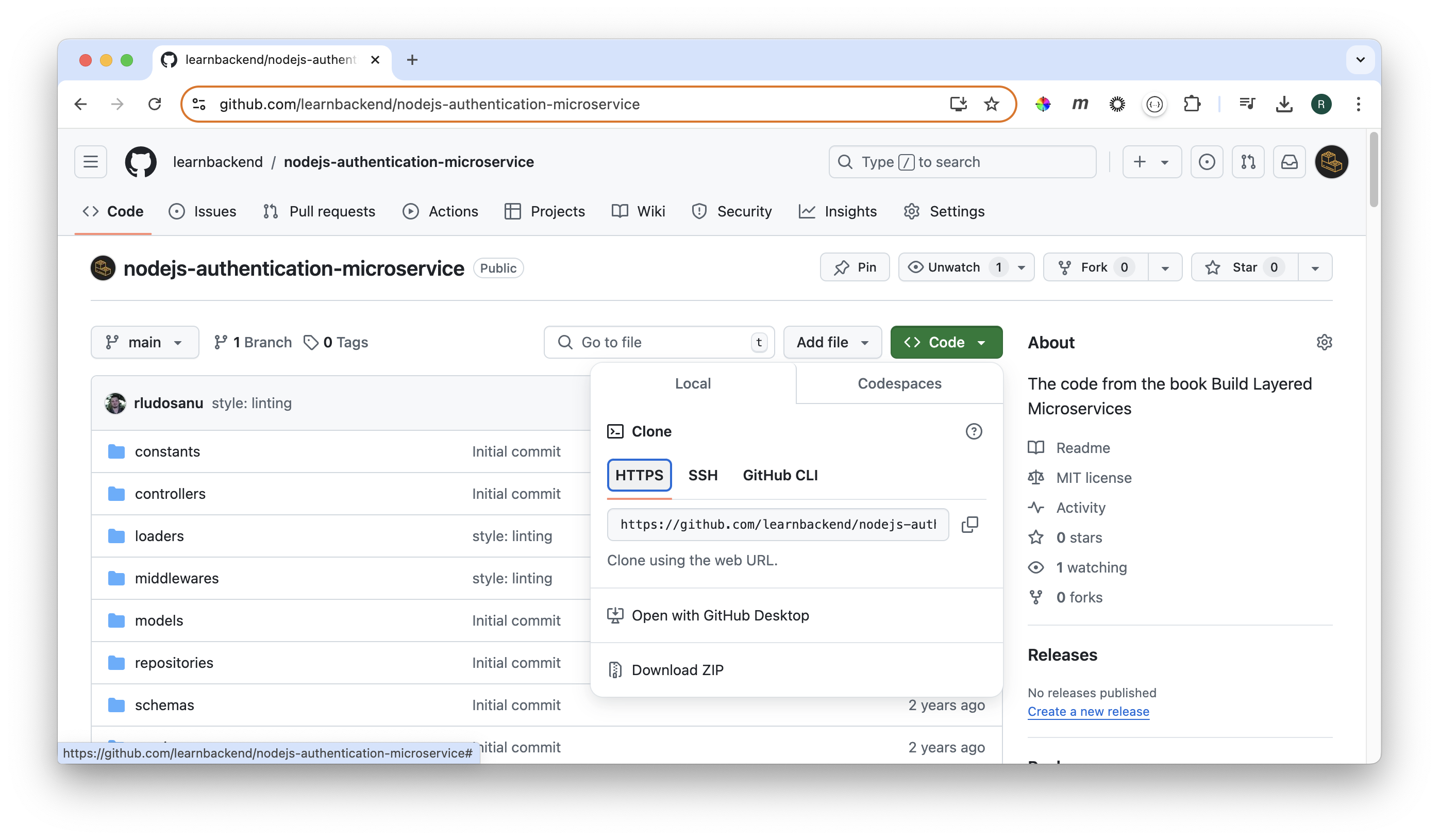
Once copied, you can use the git clone command to download it locally.
Note: When cloning a repository with the HTTPS protocol, Git prompts you for your GitHub username and password. While this method doesn't require any additional setup, you will have to enter your GitHub credentials every time you want to upload and download commits to and from the remote repository.
Cloning with SSH
When cloning a repository with SSH, authentication is done using an SSH key pair, where the private key is stored on your local machine and the public key in your GitHub account.
Generating an SSH key pair
To generate a new SSH key pair, you can use the ssh-keygen command as follows:
$ ssh-keygen -t ed25519 -C "user@mail.com"
Where:
- The
-tflag is used to specify the key type, in this case ed25519. - The
-Cflag is used to add a comment, typically your email address, which helps identify the key later.
Upon execution, you will be prompted to choose a file location to save the key:
Generating public/private ed25519 key pair.
Enter file in which to save the key (/Users/razvan/.ssh/id_ed25519):
You can either press ENTER to keep the default location, or type in a new path and press ENTER to validate it:
Generating public/private ed25519 key pair.
Enter file in which to save the key (/Users/razvan/.ssh/id_ed25519): /Users/razvan/.ssh/ssh_github
Optionally, you will also be asked to set a passphrase for the key:
Enter passphrase (empty for no passphrase):
Enter same passphrase again:
Finally, the command will print a similar message indicating that the key was successfully generated at the specified path:
Your identification has been saved in /Users/razvan/.ssh/ssh_github
Your public key has been saved in /Users/razvan/.ssh/ssh_github.pub
The key fingerprint is:
SHA256:QqTYKaxxAht6fIKJN+NrDmLMA2LC8p02PNYsz+nM6bQ razvan@learnbackend.dev
The key's randomart image is:
+--[ED25519 256]--+
|Xo .@ .          |
|=O.B.*           |
|@+B+*..          |
|5X.@=f           |
|oB*+ .. x        |
|* ..*  ..=       |
| . o .           |
|    3            |
|                 |
+----[SHA256]-----+
Adding the public key to GitHub
To add the public key to your GitHub account, you need to first copy the key:
$ cat /Users/razvan/.ssh/ssh_github.pub
ssh-ed25519 BBXXC3NzaC1lZDI1NTE5BBXXIMKi0oTQiAtYe0t2Upk5pxdqt85lCzh8UNIQL03HCMBo razvan@learnbackend.dev
Then:
- Visit the GitHub page for adding SSH keys: https://github.com/settings/ssh/new
- Write an explicit key name in the
Titlefield. - Paste the key into the
Keyfield. -
Click on
Add SSH keyto save the key.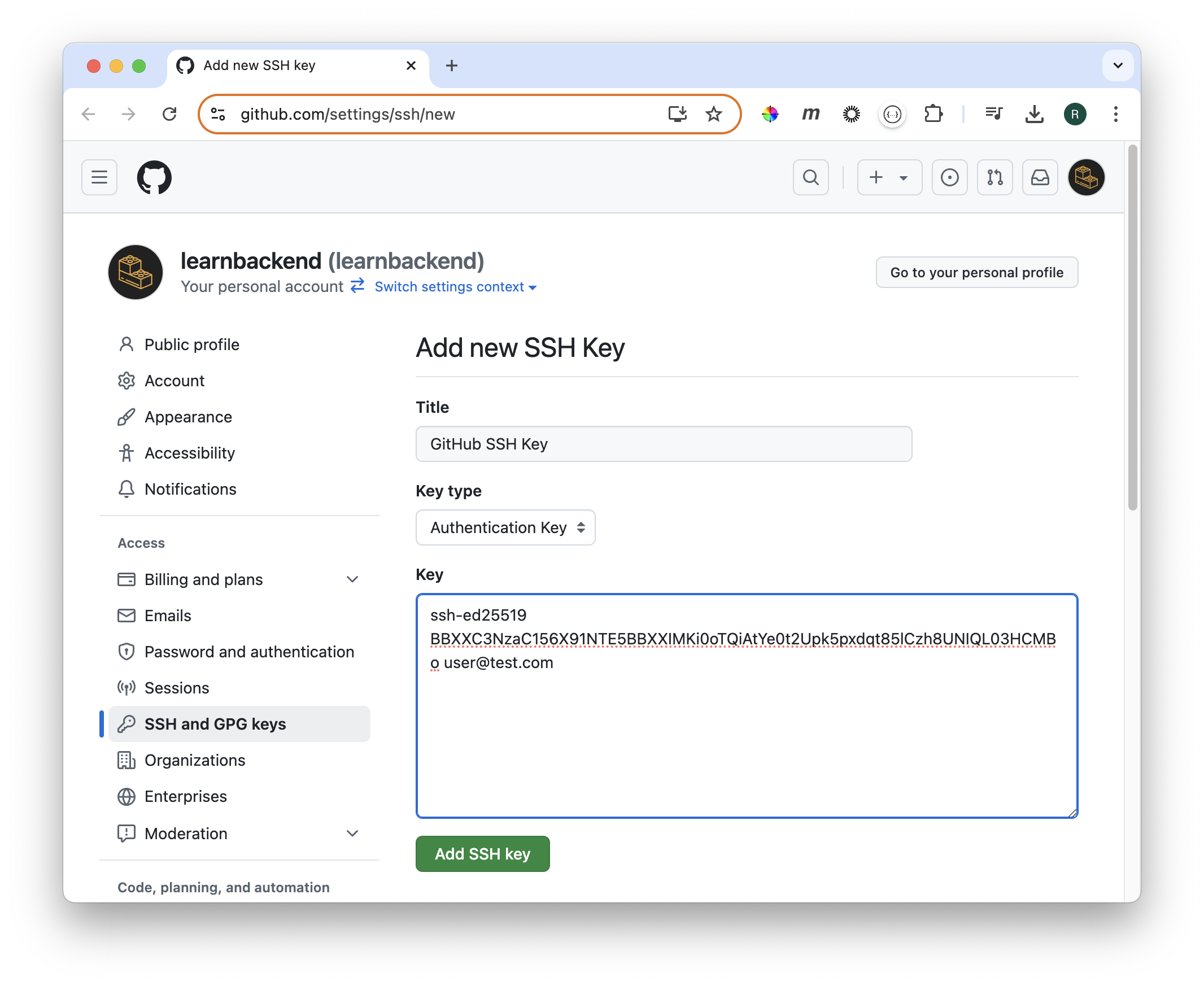
Cloning the repository
To find the URL of the GitHub repository you want to clone, you need to:
- Visit the GitHub page of the repository.
- Click on the
<> Codebutton. - Click on
SSH. -
Copy the repository's URL.
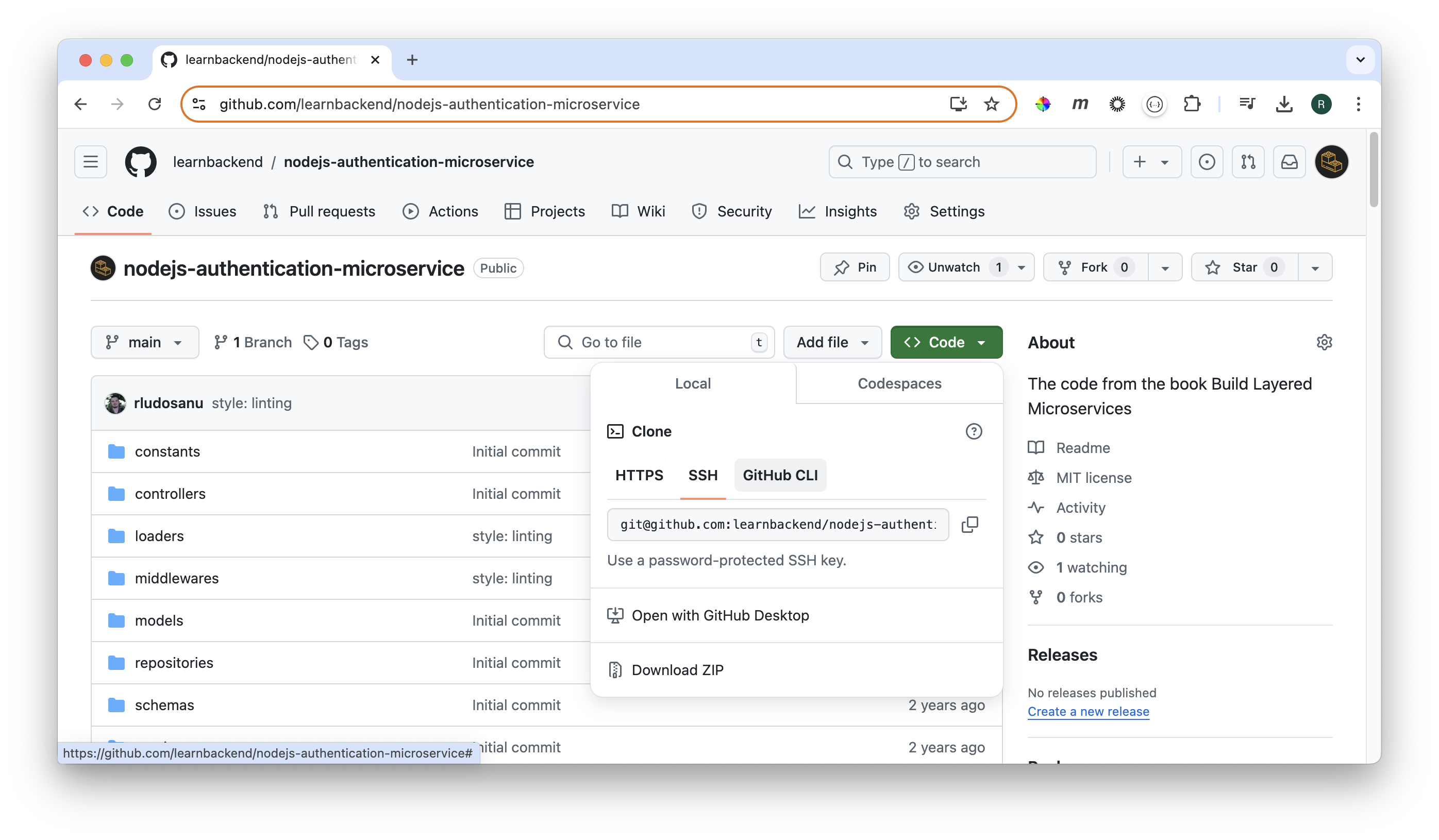
Once copied, you can use the git clone command to download it locally.
Adding a remote to a local repository
To connect a pre-existing repository present on your local machine to a remote repository hosted on the GitHub platform, you can use the git remote add command as follows:
$ git remote add <name> <url>
Where:
<name>is the name of the remote repository on your local machine.<url>is the URL of the remote repository.
This will allow you to synchronize your local repository with the remote repository by downloading and uploading the latest commits, branches, tags, etc.
Note: To output the URL of the remote repository the local repository is connected to, you can use the
git remote -vcommand as follows:$ git remote -v
Summary
Here's a summary of what you've learned in this lesson:
- GitHub is a popular web-based platform that provides hosting for Git repositories.
- To create a new remote repository, you can log in to your GitHub account and visit: https://github.com/new.
- The
git clonecommand is used to clone a remote repository on your local machine. - The
git remote addcommand is used to connect a local repository to a remote repository. - The
git remote -vcommand is used to check the remote repositories a local repository is connected to.
Enjoying the courses?
I've made these courses completely free so anyone can learn from them. If they've helped you and you'd like to actively support the work behind BackendBrewery, you can leave a tip:
Support BackendBrewery