The Command-Line Interface
6 min read·Jan 1, 2025
In Unix-like operating systems, such as Linux and macOS, the command-line interface (CLI) is a text-based interface used for interacting with the operating system and software applications using text directives called commands.
It allows users to perform all sorts of tasks that would be cumbersome or impossible through the graphical user interface (GUI), such as executing text-based programs, navigating the filesystem, configuring settings, compiling code, connecting to remote servers, and more.
Although the command-line interface can have a pretty steep learning curve for beginners, it remains to this day the most indispensable tool software developers must master in order to become truly proficient and professional.
Terminal emulators and shells
Although referred to as a single entity (or software), the command-line interface is in fact composed of two distinct programs that work together hand-in-hand: the terminal emulator and the shell.
Terminal emulators
A terminal emulator is a software (or application) with a graphical interface that gives access to a text terminal window, in which users can:
- Type characters with their keyboard to form commands.
- Visualize the output generated by these commands once executed.
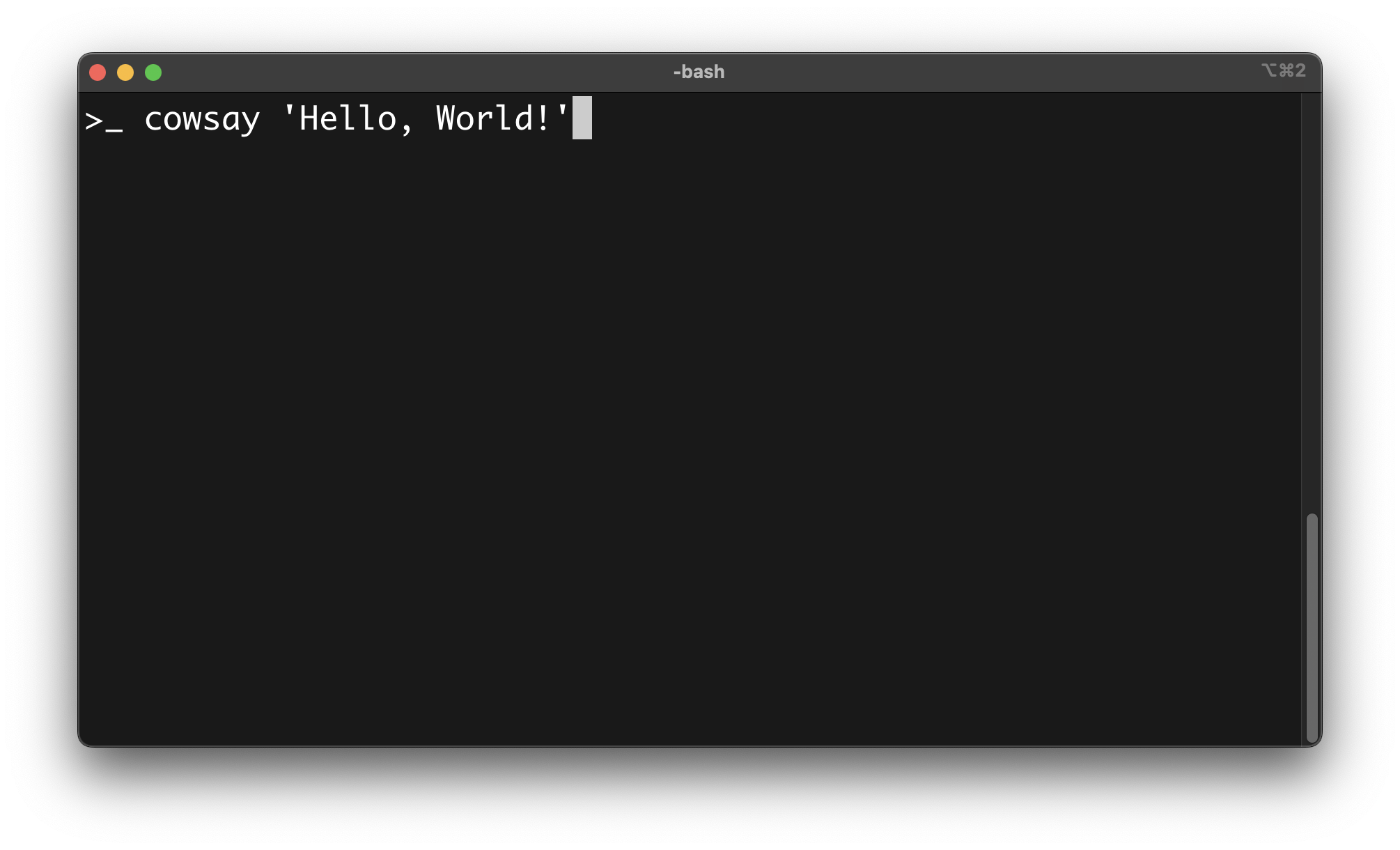
Although there are a multitude of terminal emulators to choose from these days, such as Gnome for Linux or iTerm2 for macOS, most of them often support similar features, including but not limited to:
- Tabs and multiplexing, which allow users to work with multiple command-line sessions simultaneously in different terminal tabs, like in a web browser, or split the terminal window into multiple panes.
- Scrollback buffer, which allows users to scroll up and down in the terminal window to review past commands and outputs.
- Copy and paste, which allows users to select text within the terminal window and copy it to the clipboard, and vice-versa.
- Keyboard shortcuts, which allows users to perform common actions, such as opening new tabs, switching between tabs, resizing windows, and more.
- Search, which allows users to search for specific text within the terminal output.
It's important to note that, ultimately, the best terminal emulator for you will depend on your individual preferences, workflow, and specific requirements.
Shells
A shell is a program that runs within the terminal window and that is used to interpret (or translate) the user's input into actual commands the computer understands, and display the output generated by these commands back into the terminal window.
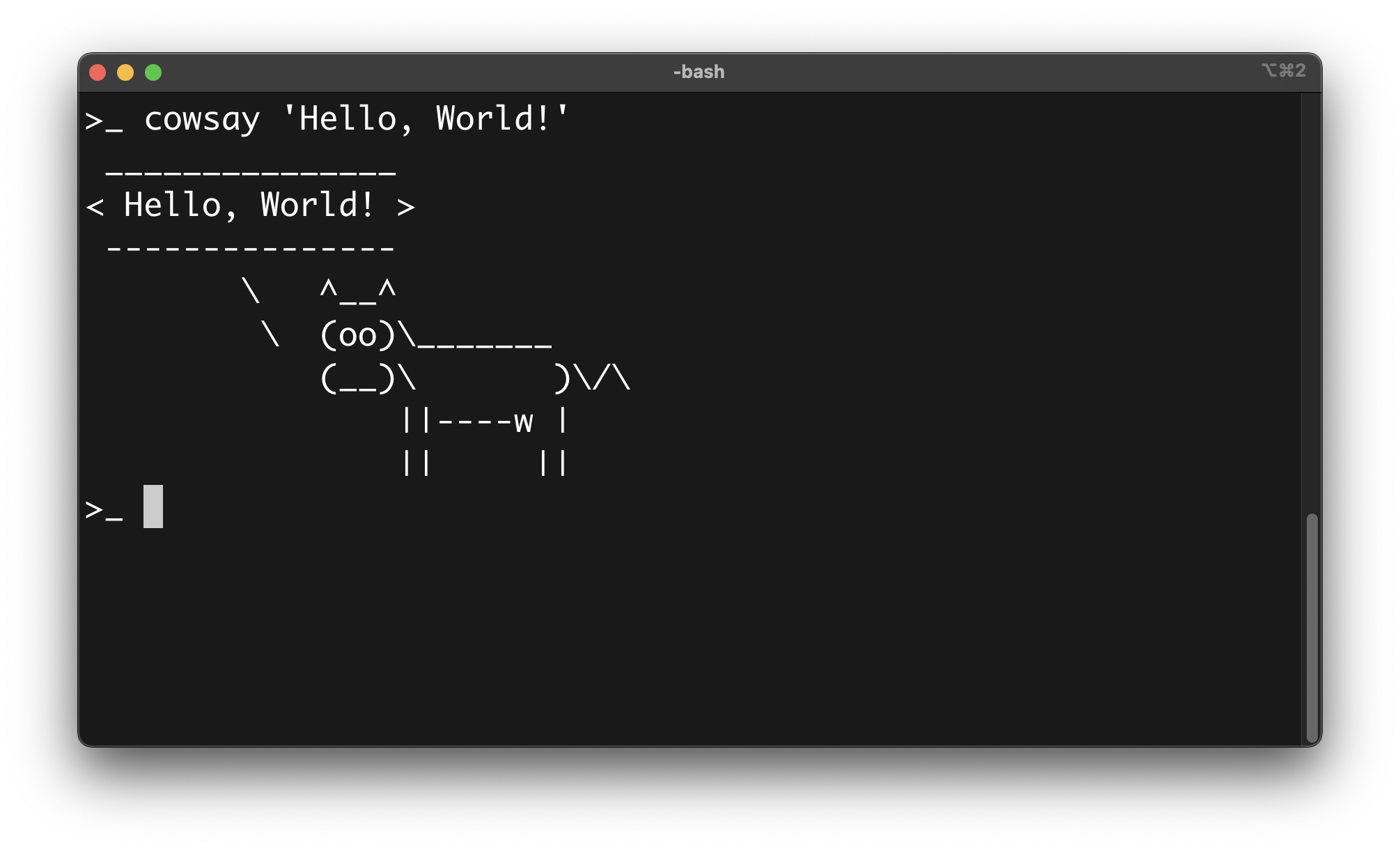
Just like terminal emulators, shells also come in a multitude of flavors and often share similar features, the two most popular shells to date being Bash (Bourne Again Shell) and Zsh (Z Shell).
Note: Unlike terminal emulators, shells are usually not platform-specific and can be installed on almost any Unix-like operating system.
Setting up your environment
Since terminals and shells are separate programs, developers are ultimately free to choose the terminal-shell combo they are most comfortable working with and that best suits their needs.
However, since the first two branches of this program are based on the Bash shell (short for Bourne-Again SHell), I advise you to follow the steps described below to ensure that you have the correct configuration to complete the lessons.
On Linux
If your computer is running on a Linux-based distribution, like Ubuntu:
-
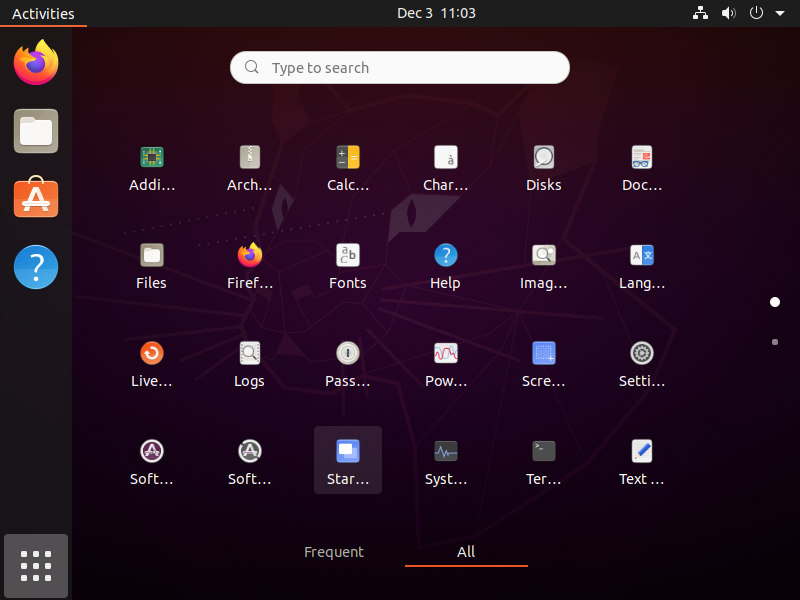
Click on the "Show Applications" icon at the bottom left of your sidebar:
-
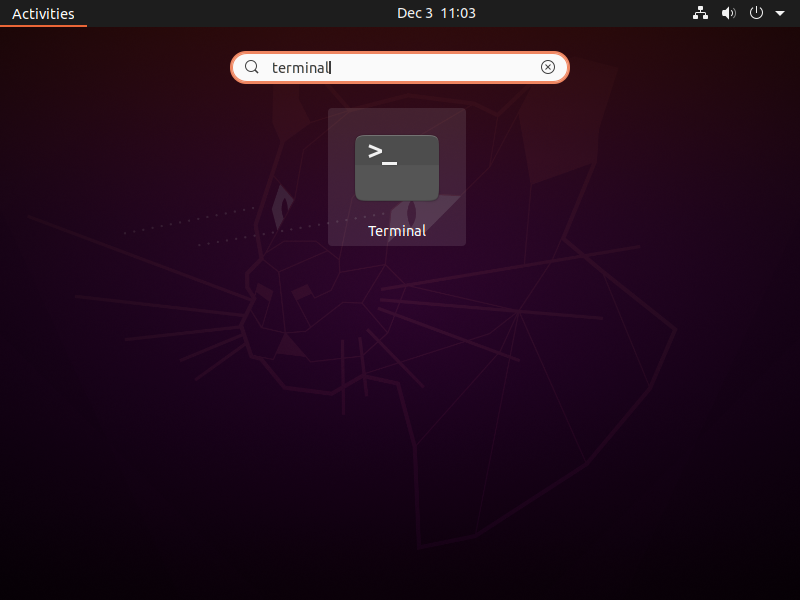
Type "Terminal" in the search bar:
-
Click on the "Terminal" icon to launch the terminal emulator:
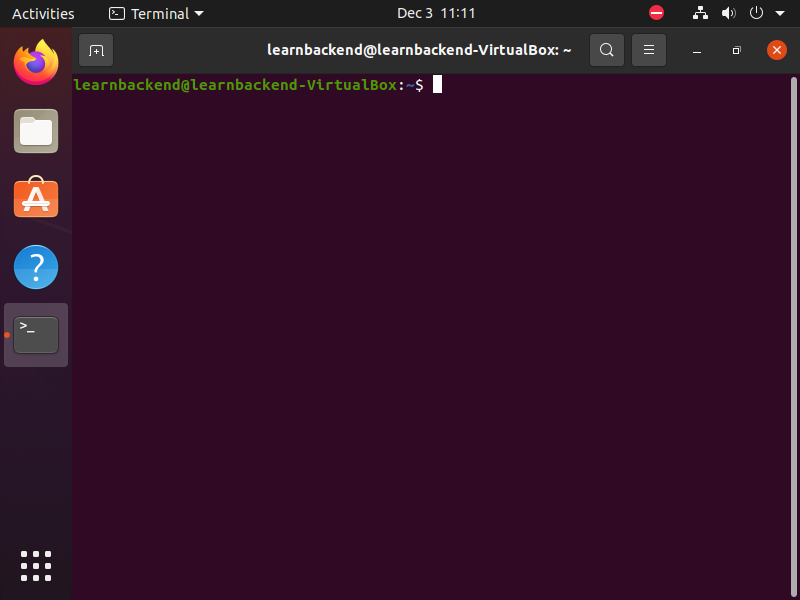
-
Type the
echo $SHELLcommand into your terminal window and press theENTERkey to execute the command: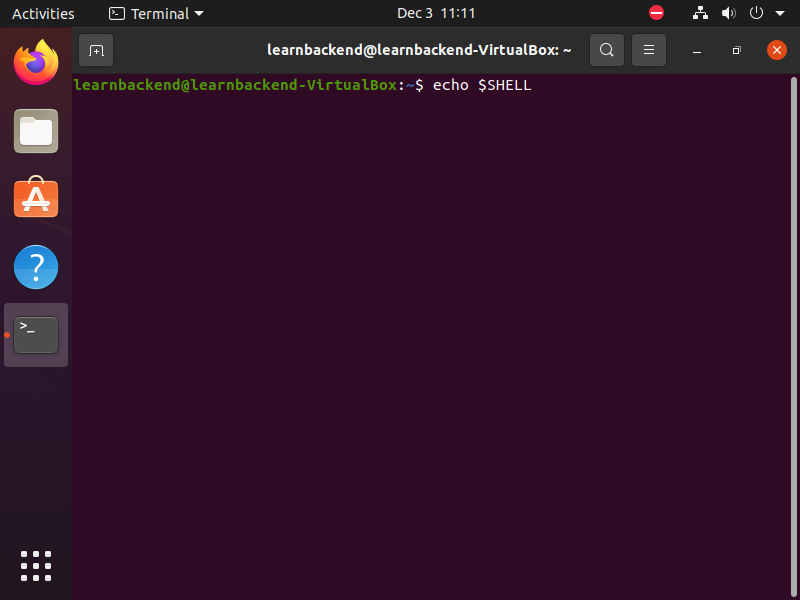
-
Verify that the output of the command is
"/bin/bash":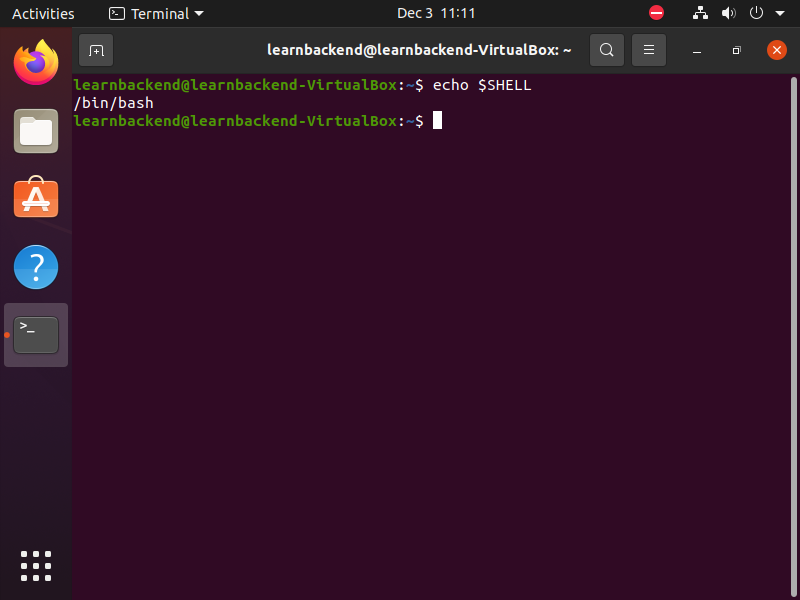
-
If it is the case, you're done here!
-
Otherwise, type the
sudo chsh -s /bin/bashcommand into your terminal window to change your default shell to Bash and press theENTERkey to execute the command: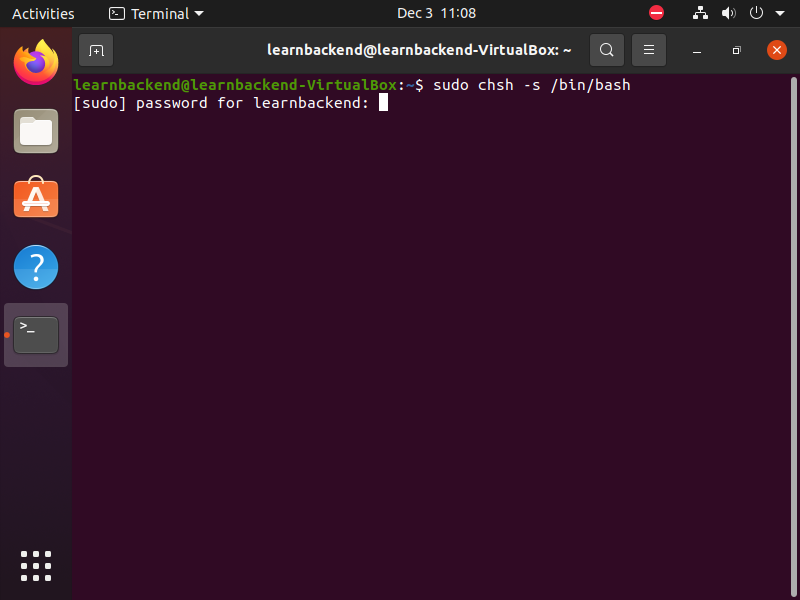
-
When prompted, type your personal password and press the
ENTERkey to execute the command. -
You're done!
On macOS
If your computer is running on macOS:
-
Download and install the iTerm2 terminal emulator available at iterm2.com
-
Press the
CMD + SPACEkey combination to display the Spotlight Search bar:
-
Type "iterm" and press the
ENTERkey to launch the terminal application: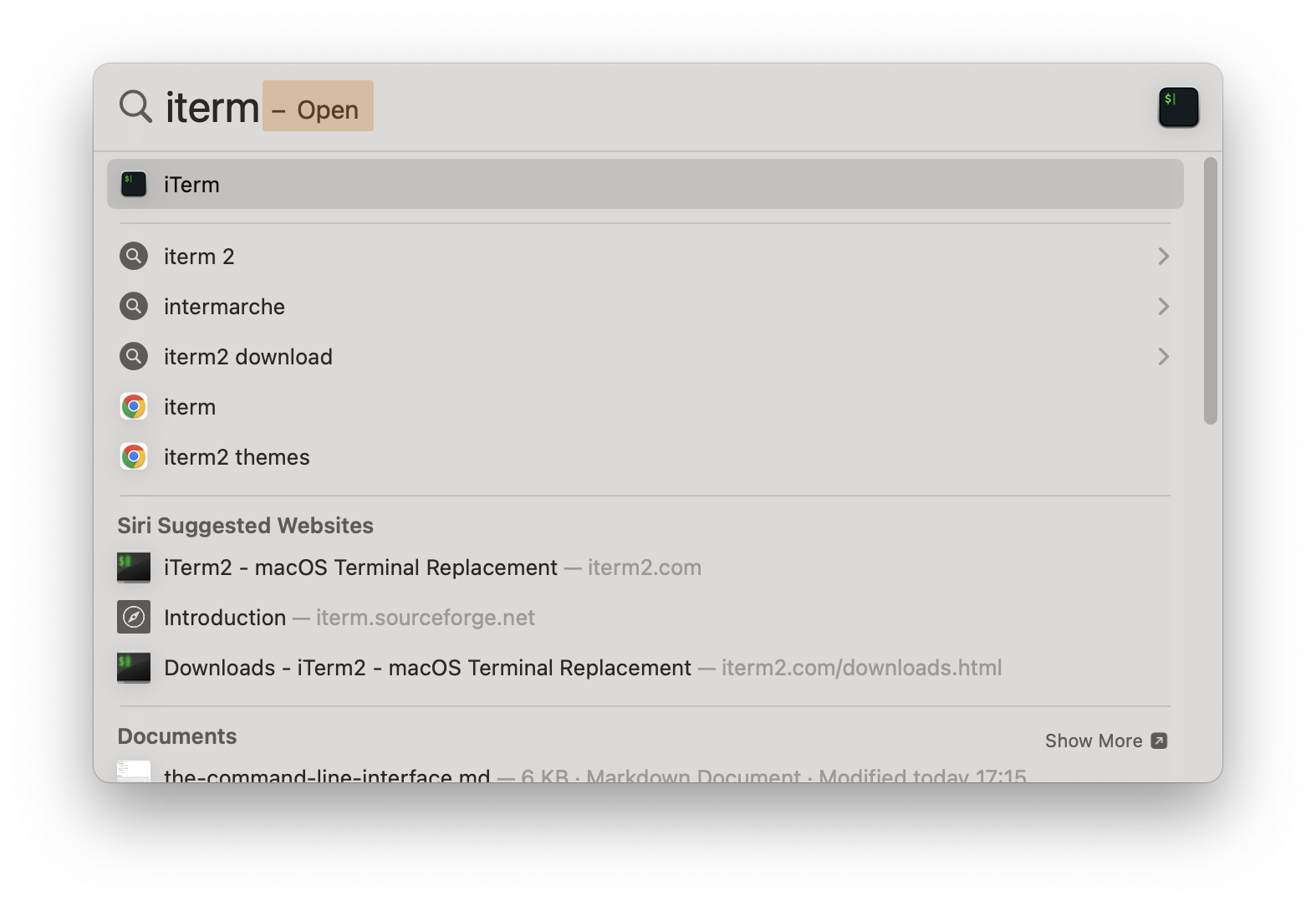
-
Type the
echo $SHELLcommand into your terminal window and press theENTERkey to execute the command: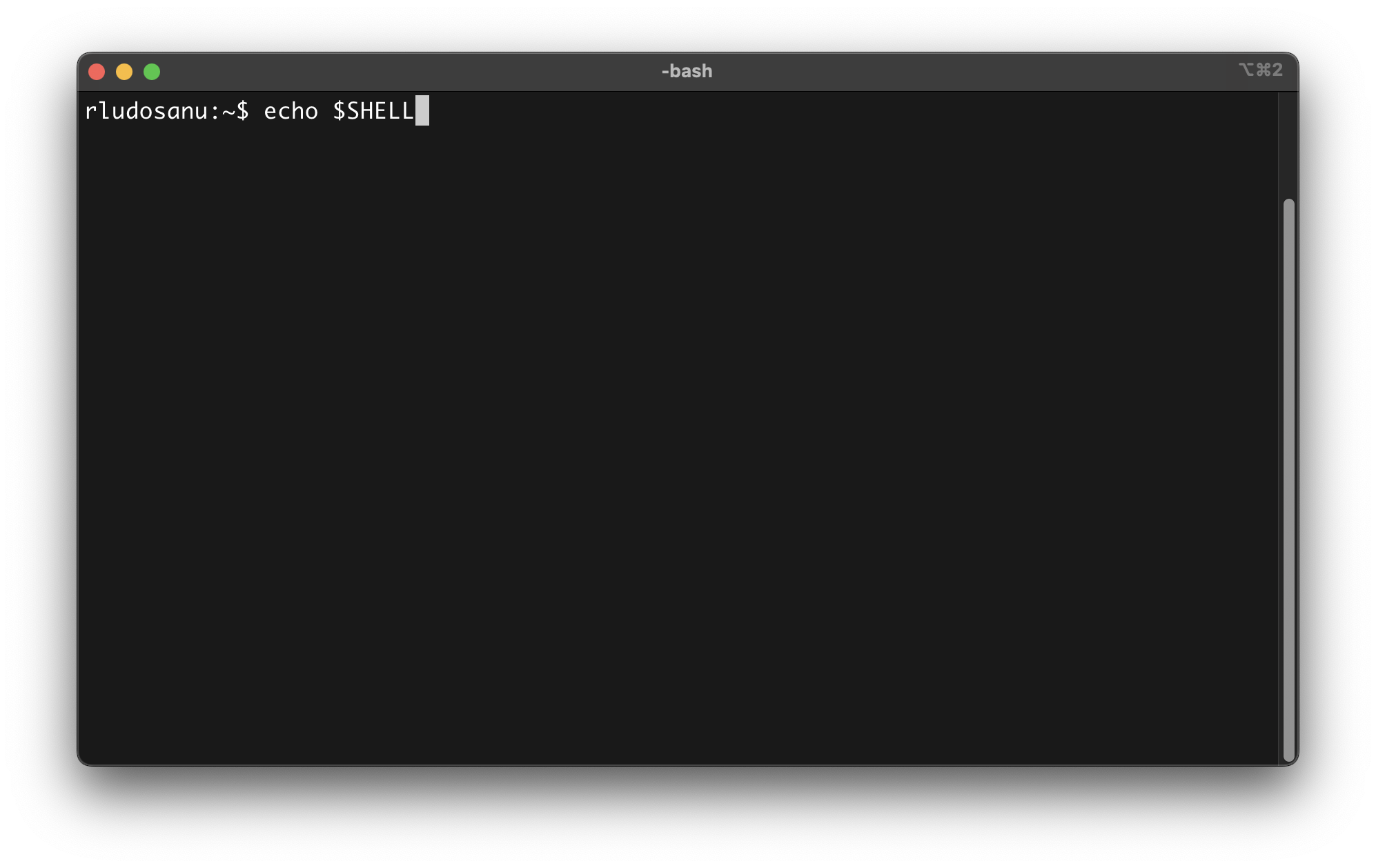
-
Verify that the output of the command is
"/bin/bash":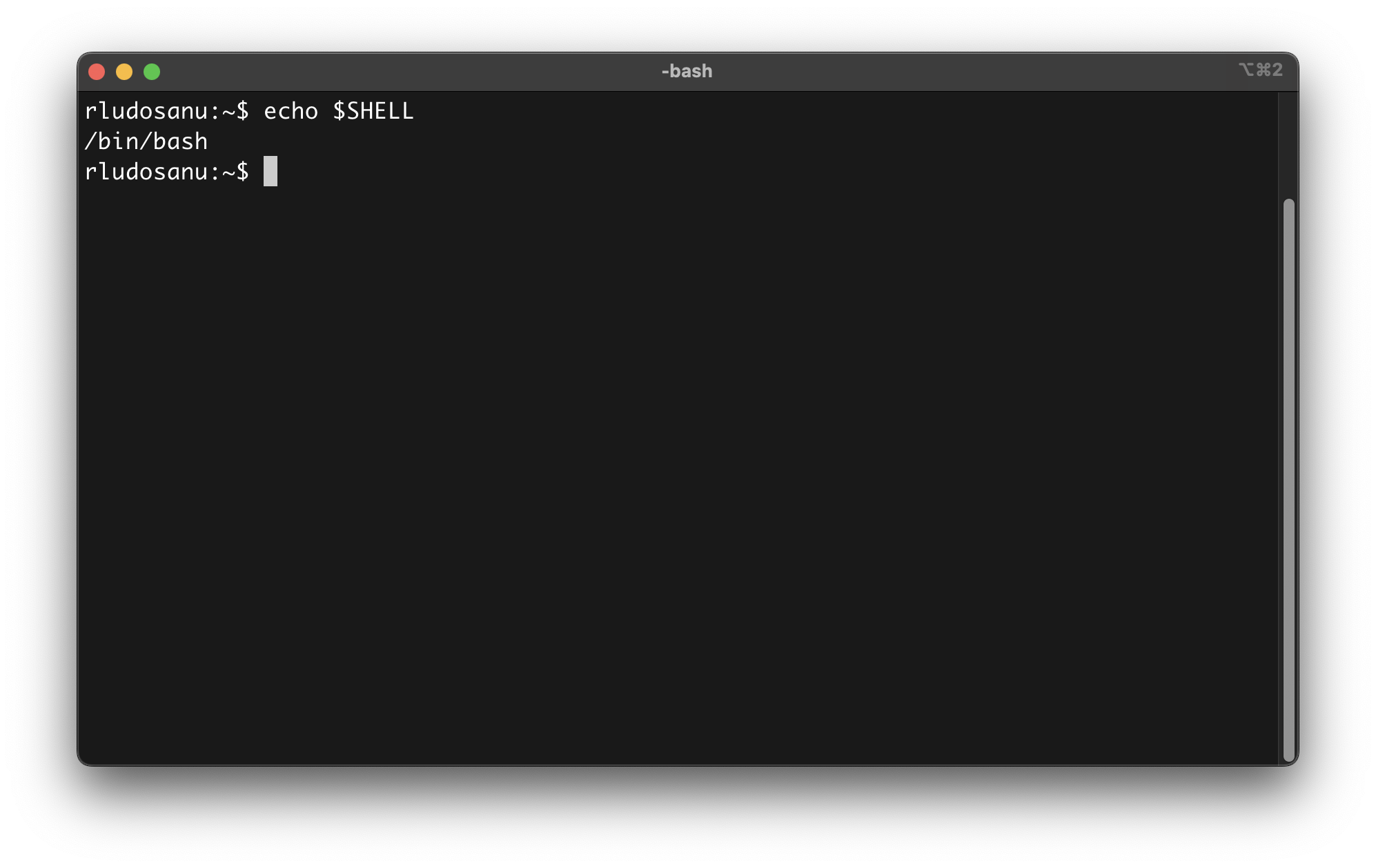
-
If it is the case, you're done here!
-
If not, type the
sudo chsh -s /bin/bashcommand into your terminal window to change your default shell to Bash and press theENTERkey to execute the command: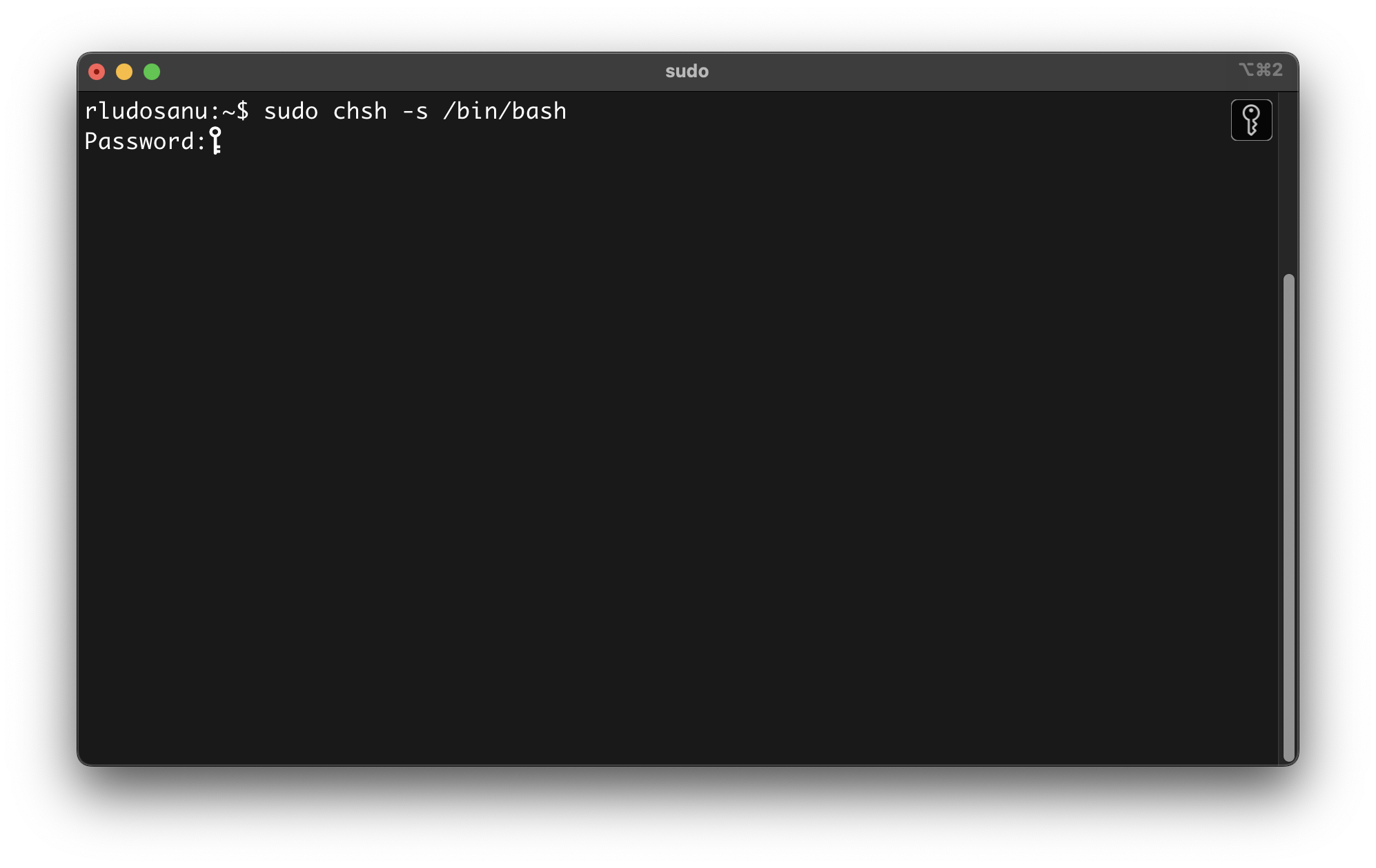
-
When prompted, type your personal password and press the
ENTERkey to execute the command.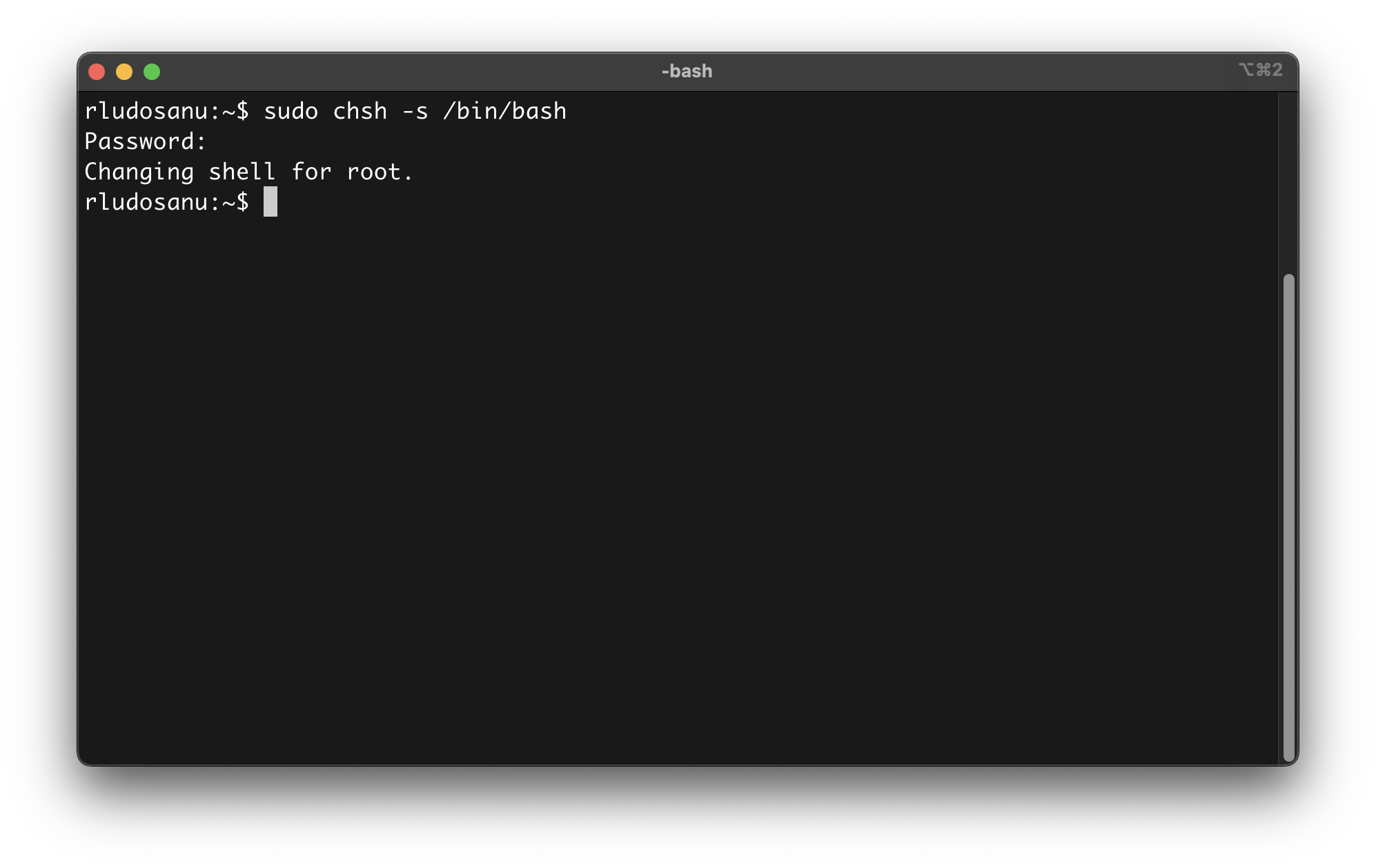
-
You're done!
Enjoying the courses?
I've made these courses completely free so anyone can learn from them. If they've helped you and you'd like to actively support the work behind BackendBrewery, you can leave a tip:
Support BackendBrewery